

Additional Use Cases
Prompt Blueprints
Prompt Blueprints are a core concept in PromptLayer that provides a standardized, model-agnostic representation of prompts. They serve as an abstraction layer that:
With this approach, you can update from one provider to another (e.g., OpenAI to Anthropic) without any code changes.
The
Note: The messages provided must conform to the Prompt Blueprint format.
The
The
The
Here is an example of how to log a request with tool calls and responses using OpenAI:
When defining a prompt template, you can specify an 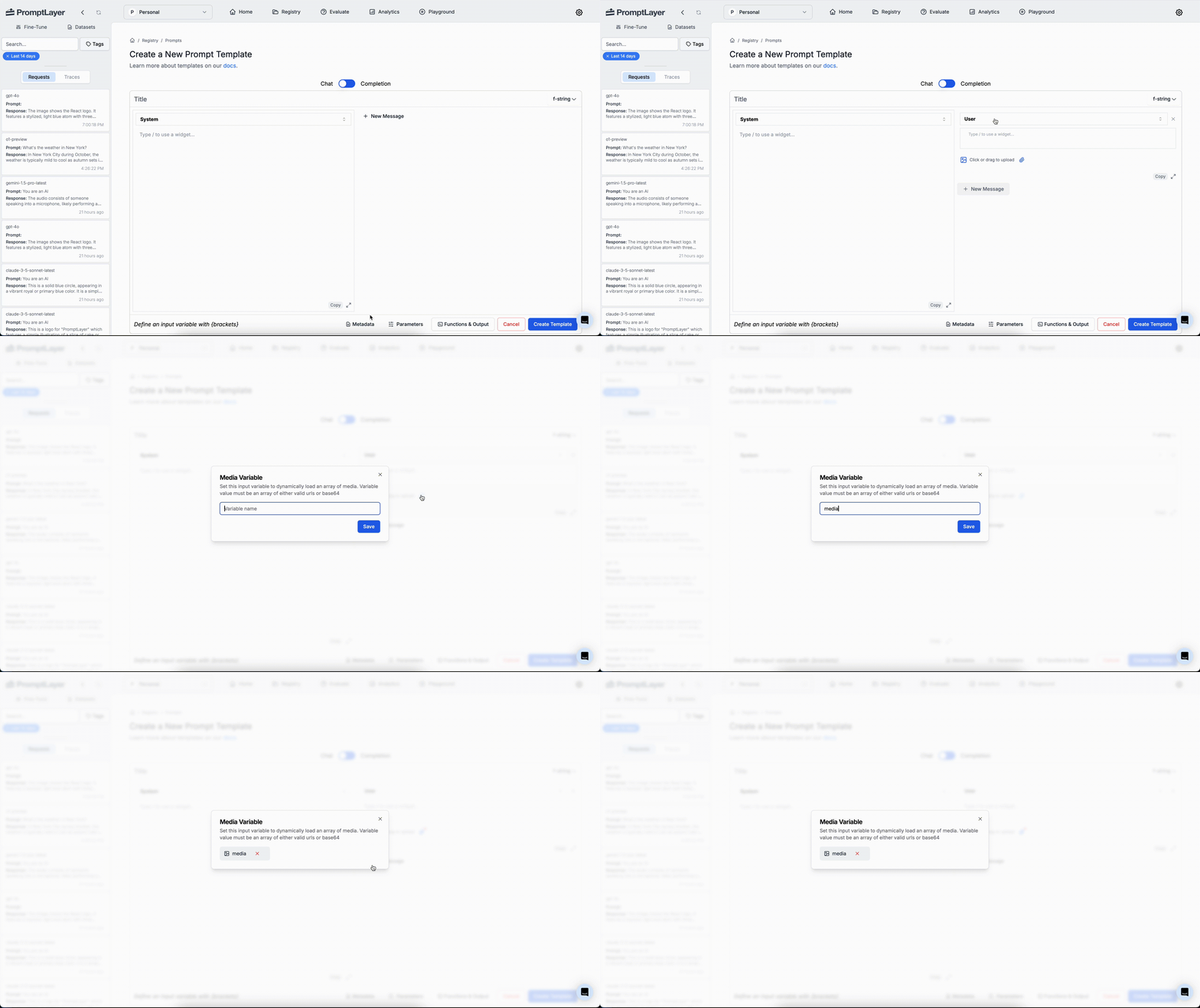
- Creates a unified format that works across all LLM providers (OpenAI, Anthropic, etc.)
- Enables seamless switching between different models without code changes
- Standardizes how prompts, responses, and tool calls are structured and stored
- Ensures consistent handling of various content types (text, images, function calls)
Accessing the Prompt Blueprint
Instead of accessing the raw LLM response viaresponse["raw_response"], it’s recommended to use the standardized response["prompt_blueprint"]. This ensures consistency across different providers.
Streaming Support
PromptLayer now supports streaming responses with prompt_blueprint integration. When streaming is enabled, each chunk includes both the raw streaming response and the progressively built prompt_blueprint, allowing you to track how the response is constructed in real-time.OpenAI Streaming Example
Anthropic Streaming Example
Key Features of Streaming with Prompt Blueprint
- Progressive Building: Each streaming chunk includes the current state of the prompt_blueprint, showing how the response is built incrementally
- Real-time Access: You can access both the raw streaming data and the structured prompt blueprint format simultaneously
- Consistent Format: The prompt_blueprint maintains the same standardized format across all streaming chunks
- Final State: The last chunk contains the complete prompt_blueprint with the full response
Streaming Response Structure
Each streaming chunk contains:request_id is only included in the final chunk, indicating the completion of the streaming response.
Placeholder Messages
Placeholder Messages are a powerful feature that allows you to inject messages into a prompt template at runtime. By using theplaceholder role, you can define placeholders within your prompt template that can be replaced with full messages when the prompt is executed.
For more detailed information on Placeholder Messages, including how to create and use them, please refer to our dedicated Placeholder Messages Documentation page.
Running a Template with Placeholders
When running a prompt that includes placeholders, you need to supply the messages that will replace the placeholders in the input variables.Prompt Blueprint Message Format
Each message in a Prompt Blueprint should be a dictionary with the following structure:role: The role of the message sender (user,assistant,system,tool,function,placeholder,developer).content: A list of content items, where each item has atypefield that determines the content structure.
Supported Content Types
Example Message
Example Message with Thinking support
Example Assistant Message with Generated Image
When a model generates an image (via OpenAI Images API, Responses APIimage_generation tool, or Google Gemini image models), the response includes output_media content blocks:
provider_metadata field varies by provider:
- OpenAI:
revised_prompt,size,quality,background,output_format - Google Gemini:
aspect_ratio,image_size
Tools and Function Calling
The Prompt Blueprint supports tool and function calling capabilities. This section demonstrates how to define available tools, handle assistant tool calls, and provide tool responses.Defining Available Tools
When creating a prompt template, you can specify available tools under thetools field. Each tool definition follows this structure:
parameters field is of interest because it specifies the expected input parameters for the function. The LLM provider will use this information to generate the appropriate tool call. You can define the parameters using JSON Schema format. You can read more about how OpenAI uses JSON Schema for defining parameters here. And you can read more about how Anthropic uses JSON Schema for defining parameters here.
Built-in Tools
In addition to custom function tools, the Prompt Blueprint supports built-in tools provided by LLM providers. These are pre-defined tools like web search, file search, code interpreter, and image generation.type field distinguishes between custom function tools ("function") and built-in tools ("web_search", "file_search", "code_interpreter", "image_generation", "google_maps"). Built-in tools are configured in the Prompt Registry UI — see Tool Calling for details.
Tool Variables
You can also use tool variables to inject tools dynamically at runtime, rather than defining them statically. Tool variables act as placeholders in thetools array that get replaced with actual tool definitions from input_variables.
For details and examples, see Tool Calling - Tool Variables.
Assistant Tool Calls
When the assistant decides to use a tool, the response will include atool_calls field in the message. The format is:
idis used by the assistant to track the tool call.typeis alwaysfunction.functioncontains the function detailsnametells us which function to callargumentsis a JSON string containing the function’s input parameters.
Providing Tool Responses
After executing the requested function, you can provide the result back to the assistant using a “tool” role message. The response should be structured JSON data:Multi-Modal Variables
PromptLayer supports any number of modalities in a single prompt. You can include text, images, videos, and other media types in your prompt templates. Themedia_variable content allows you to dynamically insert a list of medias into prompt template messages.
The media_variable is nested within the message content. The type and name are required fields specifying the type of content and the name of the variable, respectively. The name is the name of the list of medias to be dynamically inserted.
media_variable to dynamically include medias in your messages.
Running with Media Variables
Notice that the
media is a list of strings, they can either be public URLs or base64 strings.Structured Outputs
Prompt Blueprints can be configured to produce structured outputs that follow a specific format defined by JSON Schema. This ensures consistent response formats that are easier to parse and integrate with your applications. For detailed information on creating and using structured outputs with your prompt templates, see our Structured Outputs documentation.Prompt Blueprint Schema
The prompt template. Either a CompletionPrompt (type: 'completion') or ChatPrompt (type: 'chat').
- Completion Template
- Chat Template
Metadata associated with the prompt blueprint. Supports additional custom fields beyond the model field.
Name of the custom provider base URL configuration.
Maximum string length:
255Name of the inference client to use.
Maximum string length:
255ID of the provider configuration to use.
Required range:
x > 0